
Add and manage ornaments
You can add an ornament even when BaubleStash has never seen it before. A private ornament is fully usable in My Stash, search, boxes, and photos.
Add an ornament manually
Mobile app
- Open My Stash.
- Select Add ornament.
- Enter an Ornament name.
- Fill in what you know:
- Manufacturer or maker
- Manufacturer item number
- Series or collection
- Edition
- Year shown
- Condition
- Box
- Notes
- Add a photo if you want.
- Select Save ornament.
Website
- Open My Stash.
- Select Add ornament.
- Enter the Ornament name.
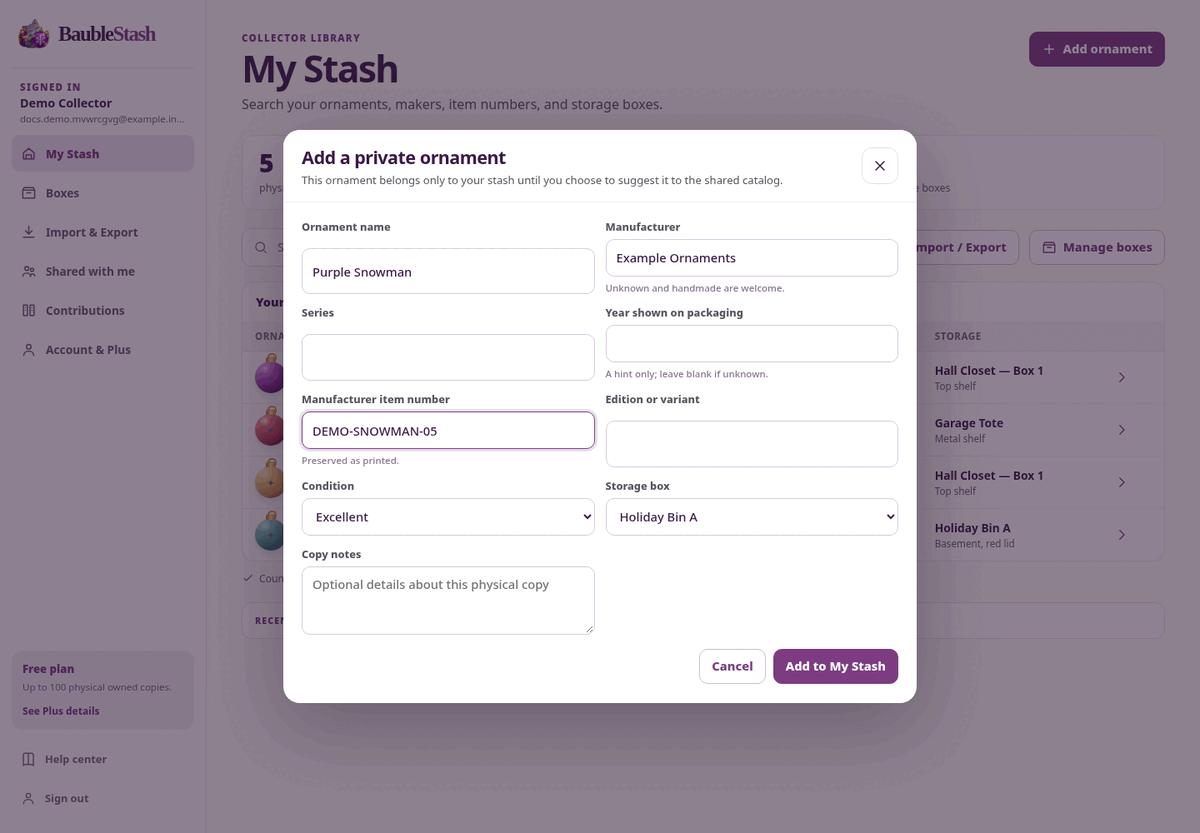
- Fill in Manufacturer, Series, Year shown on packaging, Manufacturer item number, and Edition or variant where known.
- Choose Condition and Storage box.
- Add Copy notes if useful.
- Select Add to My Stash.
The website creates the ornament and its first physical copy together, then opens the ornament page.
The only required field is the name
Everything else can wait. A name such as “Purple snowman with gold scarf” is enough to find the ornament later.
Maker, item number, year, and release details make matching easier, but a wrong guess is worse than a blank field. Leave a field blank when you do not know.
Edit a private ornament
Mobile app
- Open the ornament from My Stash.
- Select Edit.
- Change the name, maker, item number, series, edition, or year.
- Select Save changes.
The app edits the ornament details. Existing copies, boxes, notes, and photos stay linked.
Website
The website can edit a physical copy (condition, notes, and storage box), but the current web screen does not edit the private ornament’s name or maker. Use the mobile app for those fields.
Edit a physical copy
- Open the ornament.
- Find the copy under Your copies.
- Select the pencil icon or open Copy details.
- Change the condition, notes, or box.
- Save.
On the website, the copy dialog also lets you move the copy to another box.
Remove a physical copy
On the website:
- Open the ornament.
- Select the trash icon on the copy you want to remove.
- Read the confirmation.
- Select Remove copy.
This removes that physical copy from My Stash. It does not remove the ornament design, another copy, or the shared catalog record.
The mobile app does not currently provide a remove-copy button. Use the website if you need to remove a copy.
What private means
A private ornament is yours alone. It is not sent to the shared catalog, and other collectors cannot search for it. You can suggest it for the catalog later. See Catalog contributions.