
Import and export ornaments with CSV
The website can move ornaments in and out with a CSV file. Use it when you already have a list in a spreadsheet or want a portable copy of My Stash.
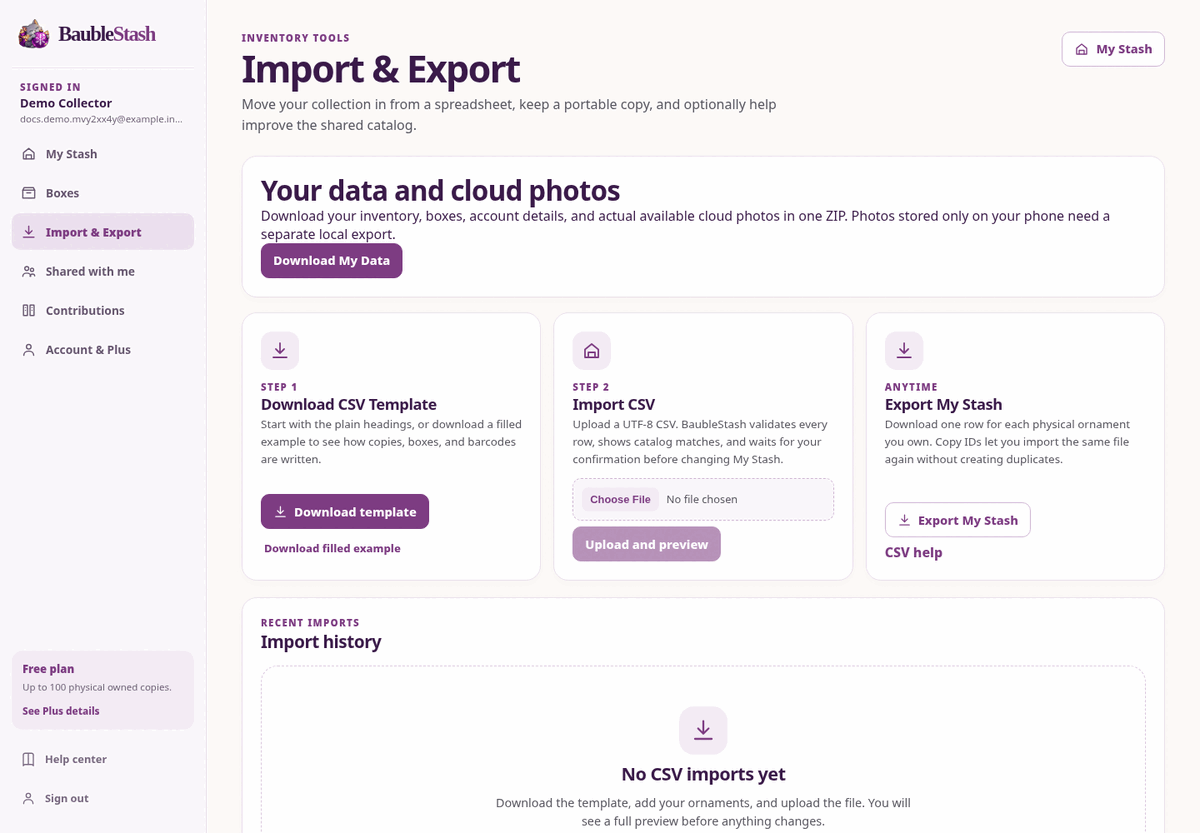
Open Import & Export in the signed-in website sidebar. You will see three actions:
- Download CSV Template
- Import CSV
- Export My Stash
Before you start
- Use the website, not the mobile app, for CSV import and export.
- One row means one physical ornament you own. Two rows for the same ornament create two physical copies.
- Save the file as UTF-8 CSV. Excel, LibreOffice, Google Sheets, and similar spreadsheet apps can produce this.
- One import can contain up to 1,000 ornament rows and 2 MB. Split a larger collection into more than one file; the copy IDs in an export keep later files safe.
- You do not need a barcode, manufacturer, year, or box for every row. Only Ornament Name is required.
Download the template
Select Download template for a blank file with the correct headings. The blank template is ready to fill in.
Select Download filled example to see realistic example rows, including:
- An ornament with a manufacturer item number
- An ornament with a UPC
- Two physical copies of one ornament
- An ornament assigned to a storage box
- A handmade ornament with an unknown manufacturer
Delete or replace the example rows before importing your own list.
Columns
| Column | Required | What to enter |
|---|---|---|
| Ornament Name | Yes | The name you recognize, such as “Santa’s Favorite Treats” |
| Manufacturer | No | Hallmark, Christopher Radko, Handmade, Unknown, or the maker you know |
| Manufacturer Item Number | No | The item number printed by the maker, such as QDB2462 |
| Year | No | A four-digit year shown for the ornament or packaging |
| Series | No | The collection or series name |
| Edition | No | Member Exclusive, anniversary edition, or another variant |
| UPC/EAN | No | The retail barcode number |
| Condition | No | Mint, Excellent, Good, Fair, Poor, or Not specified |
| Storage Box | No | The friendly name of a box in your stash |
| Notes | No | Your private notes about this physical copy |
Exports also include three optional BaubleStash ID columns. Leave them alone when you build a fresh file. They help an exported file return to the same stash without duplicating copies.
Entering numbers and years
- Manufacturer item numbers stay as text. Leading zeros, letters, and punctuation are preserved. For example,
000123stays000123. - Enter a UPC or EAN as the number under the barcode. Spaces and dashes are allowed. The check digit must be correct.
- A matching barcode is evidence, not proof that this is the same release.
- Enter the year you know as a four-digit number. If you leave it blank, BaubleStash keeps the release year unknown. It does not guess.
Entering multiple copies
Add one row for each physical ornament:
text
Ornament Name,Manufacturer,Manufacturer Item Number,Year,Series,Edition,UPC/EAN,Condition,Storage Box,Notes
Snow Day Sled,Example Maker,SD-0042,2021,Winter Village,Original,012345678905,Excellent,Holiday Storage — Box 2,First copy
Snow Day Sled,Example Maker,SD-0042,2021,Winter Village,Original,012345678905,Good,Holiday Storage — Box 2,Second copy
These become two separate physical copies. They can have different condition, notes, boxes, and photos.
Import and preview
- Select Download CSV Template if you have not already.
- Fill in one row per physical ornament and save the file.
- In Import CSV, choose the file.
- Select Upload and preview.
Uploading a file does not change My Stash. The preview shows:
- Total rows, valid rows, and invalid rows
- Rows already in My Stash
- Confident catalog matches
- Possible catalog matches
- Rows with no confident catalog match
- New storage boxes
- Your projected copy total
Fix validation errors
A red row shows the column and a plain explanation. Common fixes:
- Add a missing Ornament Name.
- Correct a year to four digits or leave it blank.
- Use one of the condition choices.
- Correct the UPC/EAN check digit or leave it blank.
- Remove a duplicate BaubleStash copy ID.
- Rename a box if two boxes in your stash have the same name.
- Remove a copy or design ID that belongs to another account.
If any row is invalid, nothing is imported. Correct the file and upload it again.
Choose catalog matches
- Already in My Stash means the copy ID is already present. That row is left unchanged.
- Catalog match means BaubleStash found a confident shared catalog record. It is selected for you. You can still choose Keep private.
- Possible match means there is more than one plausible catalog record. Choose a listed match only if you are sure. Otherwise keep it private.
- Private ornament means no confident catalog match was found. BaubleStash creates a private ornament for your stash.
A possible match is not forced. An unresolved identity stays private until you or a Librarian resolves it.
Storage boxes
If a box name matches an existing box, the row uses that box, even if capitalization or extra spaces differ.
If the box is missing, the preview lists it. Check Create these boxes to create each missing box once. No QR label is invented or attached. You can print a label later from Boxes.
Free and Plus limits
Free includes up to 100 physical owned copies. The preview includes your existing copies and shows the projected total.
If the import would go over 100 on Free, nothing is imported. There is no partial import. You can remove rows or see Plus details from Account & Plus.
Plus keeps the practical unlimited copy entitlement and the same import steps.
Confirm the import
When the preview is clean, select Import N copies. Only then does BaubleStash:
- Create the physical copies
- Create or reuse private ornaments
- Create approved box assignments
- Add the records to My Stash
The import is all-or-nothing. A failure does not leave half a batch behind.
Importing the same file twice
BaubleStash remembers the exact file you confirmed. Uploading the identical file again shows already imported and does not add copies.
A different file can legitimately add another physical copy, even when the ornament details are identical.
If an export is imported back into the same stash, the BaubleStash copy IDs identify the existing copies. They are reported as already present instead of being recreated.
Optional catalog suggestions
After a successful import, BaubleStash may find ornaments that are not confidently identified in the shared catalog.
This step is optional. Your import is already complete. Select Done to skip it.
To help the shared catalog:
- Select Review catalog suggestions.
- Review the distinct suggested ornaments. Several physical copies of one ornament are grouped into one suggestion.
- Select the suggestions you want to share.
- Correct the public catalog details if needed.
- Choose an existing catalog match only when you are confident it is the same design or release.
- Confirm that you may share the selected details.
- Select Submit suggestions for review.
Nothing is published automatically. A Librarian reviews each suggestion independently and may approve or reject it.
What is never included
Catalog suggestions do not include:
- Your notes
- Condition
- Storage box or location
- Owned quantities
- Purchase prices
- Private photographs
- Copy IDs
- Shared collection membership
CSV files do not contain photographs, so no photos are added to a catalog suggestion. If you want to share a cloud photo, use the existing contribution form on the ornament.
Export My Stash
Select Export My Stash to download a CSV with one row per physical copy you own.
The export includes:
- BaubleStash Copy ID
- Ornament name
- Manufacturer
- Manufacturer item number
- Year
- Series
- Edition
- UPC/EAN when known
- Condition
- Storage Box
- Notes
- BaubleStash design and release IDs
The export includes only your personal My Stash. It does not automatically include collections shared with you.
What the CSV export is not
A CSV file is not a complete account backup. It does not include:
- Photograph files
- Account credentials
- Subscription or billing information
- Invitation history
- Shared collection records
- Other account data
Download My Data on this page provides a separate ZIP with structured records and actual available private cloud photos. Device-local photos need the mobile export action. See Export and account deletion.
Round-trip safely
You can import an exported CSV back into the same stash. The copy IDs let BaubleStash recognize existing physical copies. The preview should show them as Already in My Stash, with zero new copies.
Do not edit BaubleStash ID columns unless you are deliberately rebuilding the file without them.