
Catalog contributions
The shared catalog is the public reference BaubleStash uses to recognize ornaments. Your private My Stash is separate.
You can help improve the catalog by suggesting an ornament, a correction, another release, or a supporting photo. A Librarian reviews every suggestion before it appears publicly.
What the shared catalog is
The catalog contains shared ornament information such as:
- Ornament name
- Manufacturer
- Series
- Release year and edition
- Manufacturer item number
- Packaging description
- Approved barcode evidence
- Approved catalog photographs
It is not your personal inventory. It does not show your condition, notes, box, or private photos.
Why an ornament might be missing
- It is handmade or one of a kind.
- It is older than the catalog data.
- The manufacturer or item number is not recorded.
- The barcode belongs to a retailer or packaging variation.
- No one has contributed it yet.
A missing catalog record does not stop you from adding a private ornament.
Suggest an ornament
Mobile app
- Open a private ornament.
- Select Suggest to BaubleStash catalog.
- Check the proposed catalog details.
- Select any barcode evidence and cloud photos you want reviewed.
- Confirm that you may share the selected details.
- Submit for review.
Website
- Open a private ornament.
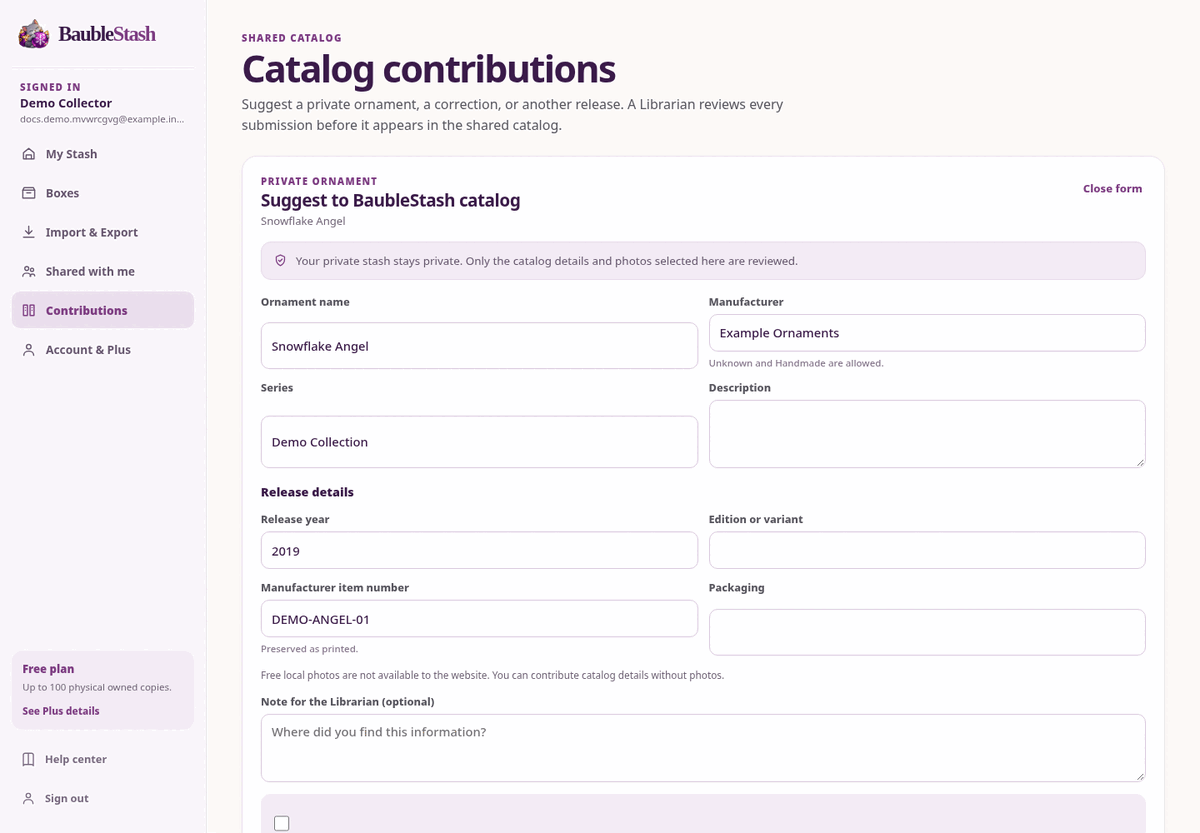
- Select Suggest to catalog.
- Fill in or correct the catalog fields.
- Select any identifiers and cloud photos.
- Add a note for the Librarian if useful.
- Check the confirmation box.
- Select Submit for review.
Suggest several ornaments after a CSV import
If you imported a CSV, BaubleStash can group unmatched ornaments into distinct catalog suggestions. This step is optional and happens only after the inventory import is complete.
- Select Review catalog suggestions after the import.
- Select only the distinct ornaments you want to suggest.
- Correct the public details if needed.
- Confirm that you may share them.
- Submit for review.
Several physical copies of one ornament become one suggestion, not one per copy. Notes, condition, boxes, copy IDs, and private photos are never included. See Import and export ornaments with CSV.
Suggest a correction
Use this when the catalog has the ornament but a detail is wrong, such as a misspelled name, wrong year, or missing item number.
- Open an ornament that is already in the shared catalog.
- Select Suggest correction.
- Choose whether you are correcting the ornament details or a specific release.
- Change the fields.
- Add evidence or a note.
- Submit for review.
Suggest another release
Use this when the catalog has the design but not the year, edition, packaging, or item number you own.
- Open the ornament.
- Select Suggest release or Suggest another release.
- Add the release details.
- Submit for review.
Contribute a photograph
Only cloud-backed photos can be selected from the website. Free device-only photos cannot be read by the website.
- Open the contribution form.
- Find Supporting photographs.
- Select only the photos you have the right to share.
- Submit.
Selected photos may become public catalog images if approved. Unselected photos stay private. Your private original remains private unless you selected it for publication.
Check the status
Open Contributions on the website or My contributions in the mobile app.
Statuses:
- Pending Review — waiting for a Librarian.
- Approved — accepted for the shared catalog.
- Rejected — not accepted; a reason may be shown.
Approval can create a new catalog record or add evidence to an existing one.
What review does not change
- Your private ornament stays in My Stash.
- Your owned copies, condition, box, and notes do not change.
- Your private photos are not published unless selected and approved.
- Other collectors do not gain access to your stash.