Print and use box labels
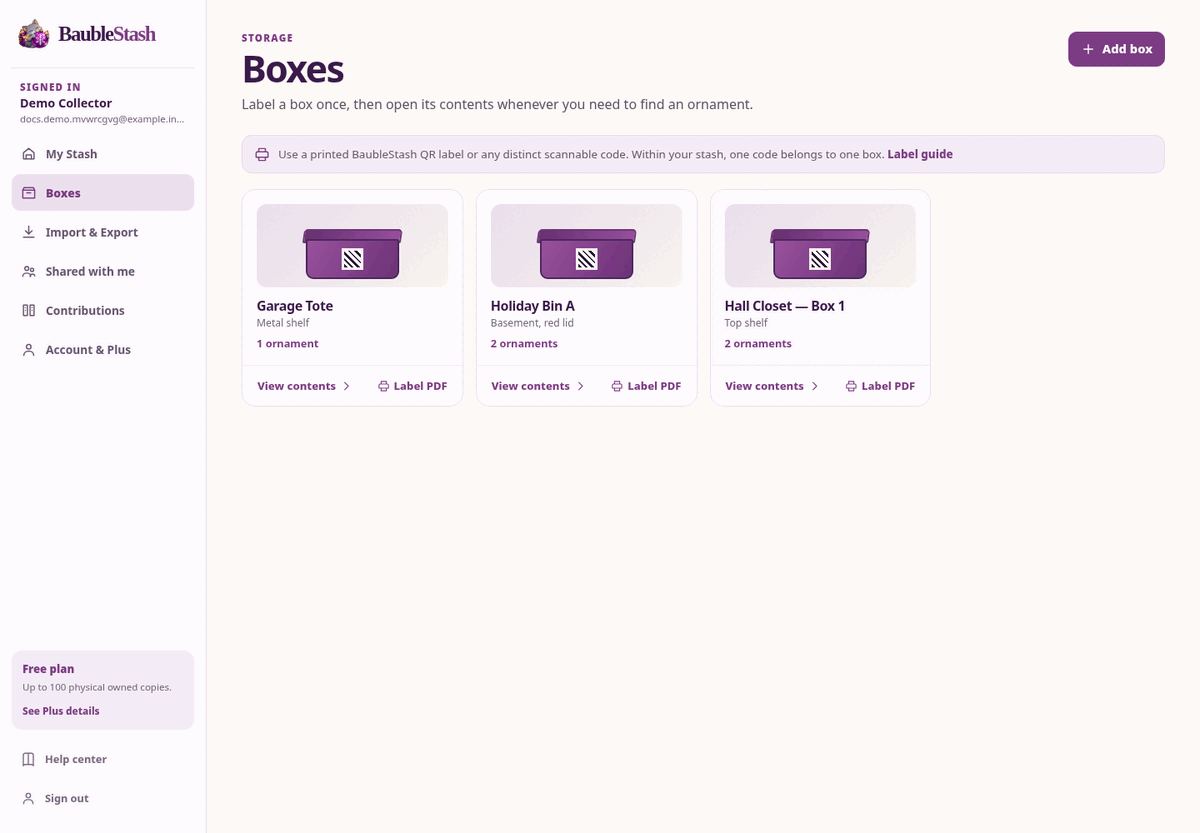
The website can download a printable QR label for a storage box. The mobile app can scan the label later to open the box.
You do not need a special label printer. Print on ordinary paper, cut out the label, and tape it to the box.
Print a BaubleStash label
- Sign in to baublestash.com.
- Open Boxes.
- Open the box you want to label.
- Choose A4 or US Letter for the label size.
- Select Print QR label.
- Your browser downloads a PDF.
- Open the PDF and print it at the intended size.
- Cut out the label and attach it to the box.
The first time you print a label, BaubleStash links a code to that box.
Reprint a label
Open the box and find Labels on this box. Select Reprint to download the same code again. A reprint is useful when a sticker is damaged or a label needs to be printed larger; it does not create a second code.
If a label was printed before reprint support existed, BaubleStash tells you to print a new label instead of silently printing a different code.
Remove a label
Select Remove next to a label when the sticker is gone or you want to attach a different code. Removing a label never removes the box, its note or the ornaments inside it. You can attach the same code to a different box later.
Print labels for future boxes
On the Boxes page, select Print labels for future boxes. These labels are not linked yet. Scan one while creating a box, or attach it to a box you already have, and it becomes that box's label. Each code can only belong to one box in your stash.
Test the label before you pack the box
- Open the mobile app.
- Select Scan.
- Scan the printed label.
- Confirm that Box found shows the correct box name.
- Select Open box.
If the label does not scan, try better light or reprint it larger. Do not assign the same code to a second box.
Use a third-party label
You can use a purchased QR sticker, a unique container code, or another scannable code.
- Open Boxes on mobile.
- Select Scan a box label.
- Scan the code.
- If the code is new, choose the option to create a box with this label.
- Give the box a name and save.
Scanning an unknown code from the main Scan screen does not automatically assign it to a box. You must choose the box action deliberately.
If the code is already used
Within one collection, one code belongs to one box. If the code is already assigned, BaubleStash will show the existing box instead of creating a duplicate.
Choose a different label, or open the existing box and confirm it is the right one.
Practical advice for dozens of containers
- Label the box on at least two sides if you stack them.
- Use large, high-contrast labels.
- Put the box name and location in readable text next to the QR code.
- Keep a photo of the label in your phone’s photo library as a backup.
- Scan each label once after attaching it.
- Do not cover the QR code with shiny tape; glare can prevent scanning.
What the QR code contains
A BaubleStash label contains an opaque code. It does not contain your name, email, private notes, or box contents.
Scanning the code in BaubleStash opens the box. The code does not grant access to anyone who scans it outside the app.