
Add your first ornament
This walkthrough takes you from an empty My Stash to one searchable ornament in a labeled box. It should take about five minutes.
You can follow it in the mobile app or on the website. The mobile app can scan a barcode; the website is manual entry.
What you need
- Your BaubleStash account.
- One ornament you can look at.
- The ornament’s name. A maker, year, or item number is helpful but optional.
- A storage box name, if you already know where it lives.
Step 1: Create a box first (optional but recommended)
- Open Boxes.
- Select Create a box or Add box.
- Enter a name you will recognize, such as
Hall closet — Box 1. - Add a Location such as
Top shelf. - Save the box.
On the website you can also print a QR label now. See Create your first box.
Step 2: Add the ornament
In the mobile app
- On My Stash, select Add ornament.
- Enter the Ornament name.
- Optionally add the Manufacturer or maker, Manufacturer item number, Series or collection, Edition, and Year shown.
- Choose a Condition.
- Choose the storage box you created.
- Add a note if it helps, such as “Red ribbon is faded.”
- If you want, add a photo from the camera or your photo library.
- Select Save ornament.
On the website
- On My Stash, select Add ornament.
- Enter the Ornament name.
- Fill in Manufacturer, Series, Year shown on packaging, Manufacturer item number, and Edition or variant where you know them.
- Choose a Condition.
- Choose a Storage box.
- Add Copy notes if you want.
- Select Add to My Stash.
The website opens the ornament page after saving.
Step 3: Check that it worked
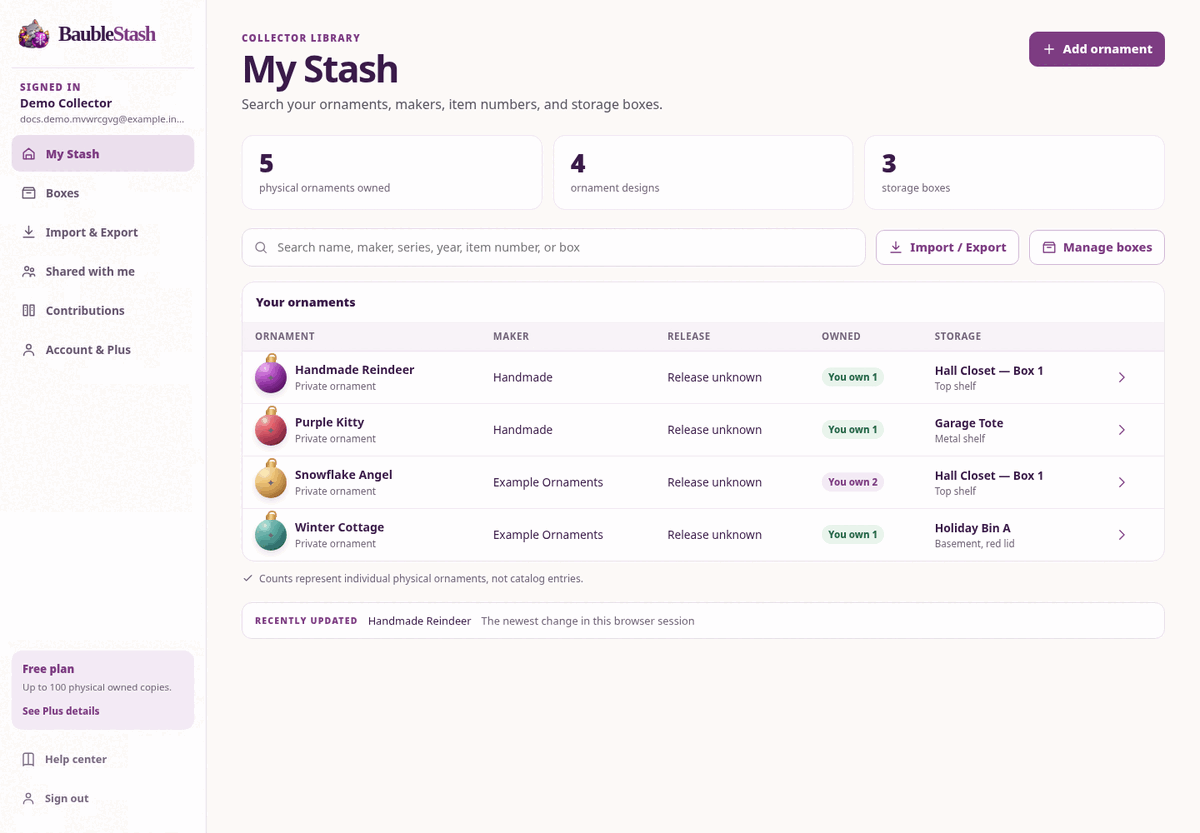
- My Stash shows You own 1 for the ornament.
- The storage column shows your box, or Not in a box if you skipped it.
- Opening the ornament shows Copy 1 with its condition, release, and box.
- Searching for the name, maker, or item number finds it.
Step 4: Add what you know later
You do not need to identify the exact release today. If you are unsure, leave the copy as Release unknown. You can link it to a release later without losing its box, notes, condition, or photos.
Common first-time questions
The ornament is not in the catalog. Can I still add it? Yes. Click or tap through to create a private ornament. See Ornaments without a barcode.
I have two identical ornaments. Add a second physical copy to the same design. See Own more than one copy.
The year on the box is not the release year. Enter it as the year shown, but treat the release as unknown until you have better evidence. See Releases and editions.